


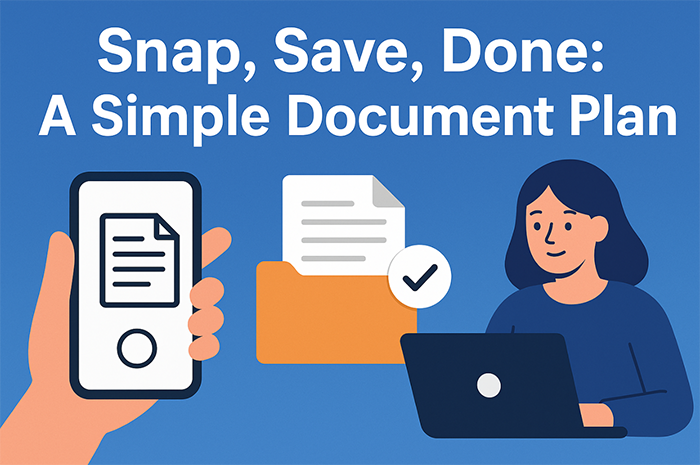
Paper seems harmless until it takes over a desk, a bag, or a kitchen counter. One bill turns into a small pile, and then the pile grows into a stack that feels heavy every time it gets ignored. A simple plan can stop that from happening. It keeps documents safe, easy to find, and ready when needed. Here is a straightforward way to go from paper mess to neat digital files without stress.
Why paper gets in the way
Paper is slow. It is hard to search, easy to misplace, and prone to wear out. When a form is needed, it can be in the wrong folder or the wrong room. Pages can tear, fade in the sun, or get damaged by water. Finding one sheet in a box is guesswork. Digital files fix all of that. They can be searched in seconds. They stay readable. They can be shared without handing over the only copy.
There is also a privacy risk with loose paper. A page on a desk can be seen by anyone who walks past. A digital copy can be locked behind a password. That protects school reports, medical notes, receipts, and tax records. It also keeps personal info safe from curious eyes.
What to scan first
Start with papers that would be a pain to replace. That includes IDs, medical letters, tax records, rental agreements, and school reports. Then move to bills, receipts, and any warranty cards. If there is a folder that gets opened a lot, scan that whole folder. Fast wins help the plan feel real. Once the important files are safe, scanning the rest is easier.
If the pile is huge or time is short, it can help to get a hand from a trusted service. For example, teams handling many boxes may find it easier to use document scanning melbourne for bulk work or tricky formats, while keeping a simple home system for daily pages.
The plan: Snap, Save, Done
This plan has three moves. They work for a single receipt or a box full of forms.
Snap. Use a phone or a scanner. Place the page on a flat, dark surface. Good light helps the camera read the text. Hold steady and fill the frame. If the app has an auto-crop feature, use it. If the page is two-sided, scan both sides. For a long set of pages, keep the order the same the whole time.
Save. Put the new file in the correct folder right away. Do not wait. Waiting creates a second task for later, and that is how a new pile starts. If the file name is not clear, fix it now. A few seconds here saves minutes later.
Done. Back up the file. That can be a cloud drive, a folder that syncs, or a small USB drive. When the file is backed up, the job is complete. The paper can be recycled or stored in a small archive box if the original must be kept.
Naming that makes sense
Names should help with two quick questions: “What is this?” and “When is it from?” A simple pattern works well:
- Date in YYYY-MM-DD format at the start, so files sort by time.
- Type in one short word: invoice, receipt, form, report, contract.
- Short title that means something: electricity, school-fees, lease-renewal.
A full name might be: 2025-03-14_invoice_electricity.pdf. Short, clear, and searchable. No fancy symbols, no long phrases. If a vendor name matters for searches, include it. If a number matters, contain the last four digits. Keep it brief.
Folders that act like drawers
Think of folders as drawers. There is no need for dozens of levels. Two main folders work for most people: Personal and Work/School. Inside each, create a few broad folders for areas that hold many files, such as Bills, Health, ID, Tax, Housing, Learning, or Projects. Put the file where it would be searched for first. When in doubt, choose the folder that gets used most. If a file could live in two places, add a tag or a keyword to the file name so searches will still find it.
Safe storage and backup
Accidents happen. Phones break. Laptops fail. That is why a backup is not optional. Use two forms of storage: one cloud location and one local copy. A cloud drive is simple and usually automatic. A local copy can be a small USB drive or an external hard drive kept in a safe place. Back up on a schedule. Weekly is fine for most homes and students. For small teams, daily is better.
Encrypt the drive if it holds private records. Most systems can do that with a few clicks. Use a strong password manager to keep track of passwords and recovery codes. Never reuse a password across services.
Sharing files without losing control
Sometimes a file needs to be shared with a teacher, a coach, a landlord, or a teammate. Use links with clear permissions. View-only is the default for most shares. Set an expiry date for the link when possible. If an edit is needed, create a copy and label it “shared”. That way, the original stays safe, and it is easy to see what was sent.
If a document is signed, include the signed copy and the original in the same folder. Add “signed” to the file name of the final version. This avoids confusion later.
Scanning tips that raise quality
A few minor details improve every scan:
- Keep the lens clean. A quick wipe removes smudges.
- Use even light. Avoid harsh shadows across the page.
- Hold the phone square to the page. That stops skewed edges.
- Use 300 DPI or higher when a flatbed scanner is available.
- For photos or color charts, use color mode. For plain text, black-and-white is faster and smaller.
If a scan turns out blurry, do it again right away. Fixing a bad scan later takes more time than a second try now.
Handling big piles without burning out
Large piles can feel heavy even before the first page is scanned. Break the job into small sessions. Ten minutes a day is better than one long weekend that never happens. Start with one category, such as Bills from this year. Then move to Health, and so on. Put a small “inbox” tray near the door or the desk. New papers go there first, then get scanned and filed once a day or once a week.
For teams, set a shared rule: new documents get scanned on the day they arrive. Make one person the weekly checker who ensures the folders stay clean and backups run on time.
Privacy, legal needs, and what to keep
Some papers should be kept in original form for a set time. These rules vary by document type. As a safe baseline, keep tax records and key contracts in a small archive box for at least seven years. Label the box by year and type. Everything else can be recycled after scanning unless a school, agency, or advisor says to keep it. When in doubt, store the original in a single “Keep” box and review it once a year.
Shred papers that hold private data before recycling. Cross-cut shredders are best for this because they cut pages into small bits.
Troubleshooting common problems
PDF too large. Lower the scan resolution for plain text. Use a “compress PDF” tool when sharing by email.
Pages out of order. Rename with page numbers at the end: …_p01.pdf, …_p02.pdf.
Hard to read. Rescan with more light and use the camera’s document mode for auto-crop and contrast.
Can’t find a file. Search by date first, then by the type word, then by the short title. If this keeps happening, adjust the file names to match how searches are done.
Keep it going with one small habit
Pick a time that already happens—after school, after dinner, or after Friday’s last class. Scan new papers then. It takes a few minutes and saves hours later. A small timer can help. When the timer ends, finish the current page and stop. The goal is steady progress, not a perfect archive in one go.
Key takeaways
A clear plan beats a tall stack. The three-move flow—Snap, Save, Done—keeps papers from piling up and makes every document easy to find in seconds. Simple names, simple folders, and two backups make the plan strong. A weekly habit keeps the system clean without a big time hit. Start with the papers that matter most, and the rest will follow. Try the plan this week, see how much smoother the next task feels, and keep going until every page has a home.